
Find out whether the slowdown starts with internet service, Wi-Fi coverage, shared capacity, or a device, with Gamma Tech’s help.
A fast internet plan can still leave a laptop struggling in a meeting room. The connection from your provider and the wireless connection inside your office are separate parts of the path. Slow office Wi-Fi needs a check of both, along with the device and application showing the problem.
Gamma Tech helps customers investigate the network and computer issues behind those interruptions through our managed IT services. A useful starting point is a short description of who is affected, where it happens, and when it began. Those details help our team choose the right tests before recommending changes.
Start with who, where, and when
Describe what feels slow: a video call freezes, a website takes a long time to open, or a file upload stalls. Record the approximate time and the office area. A screenshot of an error can also help, with private information kept out of the support request wherever possible.
Compare another approved work device in the same area. A problem affecting one laptop suggests a different investigation from a problem affecting everyone in a meeting room. One application behaving poorly also deserves a check of that service and device.
| What you notice | Useful comparison | What it helps Gamma Tech investigate |
|---|---|---|
| One laptop struggles | Another work device in the same place | Device, connection, or application differences |
| One room is consistently slow | The same laptop elsewhere in the office | Coverage, local interference, or the access point serving that area |
| Problems grow during busy periods | The same area at a quieter time | Shared wireless capacity and other network load |
| Several areas and devices are affected | An approved wired comparison | The wider network, internet connection, or shared service |
These observations narrow the investigation. Each pattern can have several causes, so a comparison is a clue to check against the network’s actual condition. Ubiquiti’s Wi-Fi troubleshooting guide describes the signal, interference, and usage information available on supported UniFi networks.
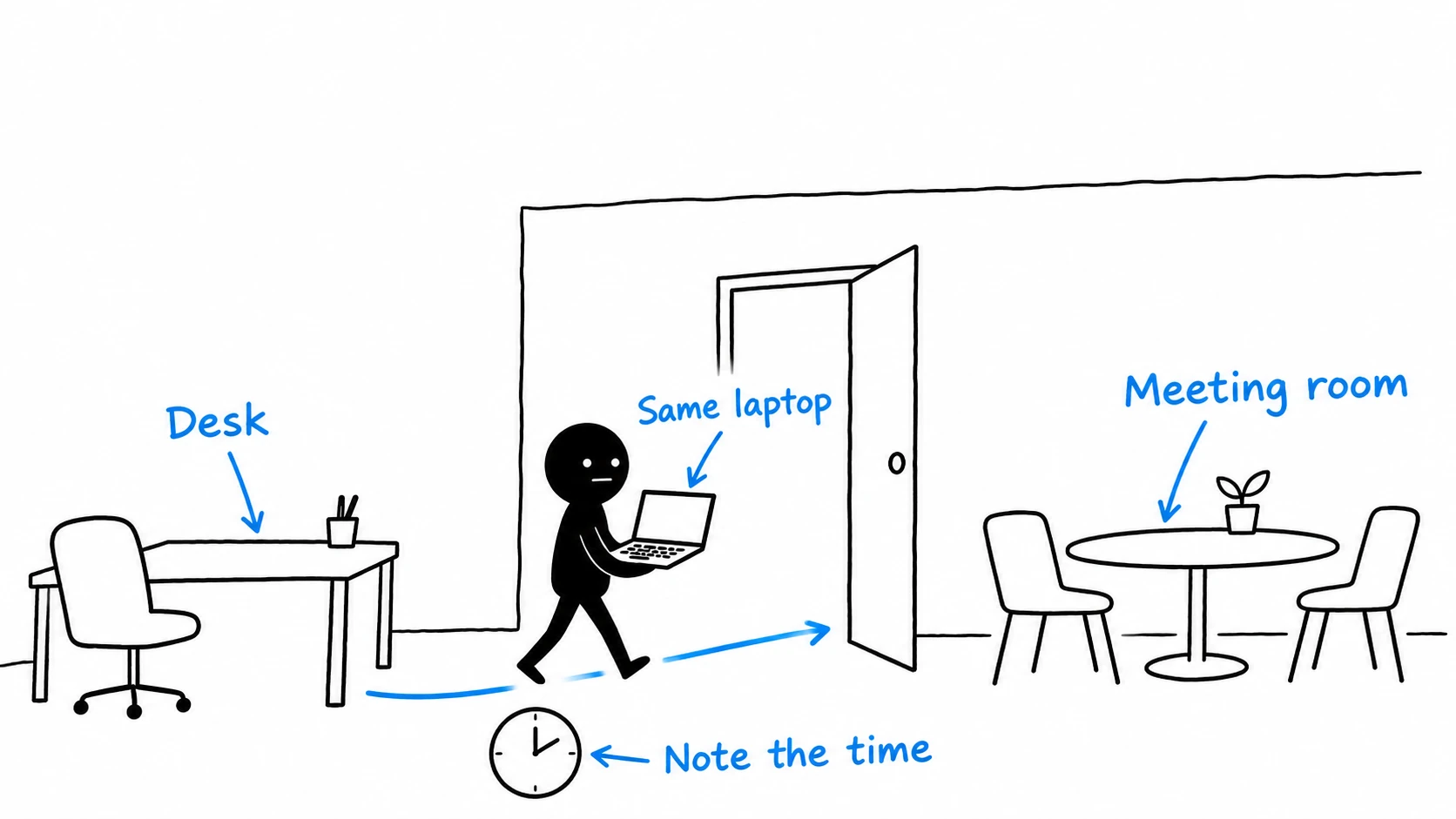
Compare the same laptop in two places
Try the affected laptop at its usual desk and in the troublesome meeting room, using the same approved Wi-Fi network and the same simple task. Record the time and what happened in each place. Repeat the comparison near the time the problem normally occurs, where practical.
A hypothetical example: the same laptop opens a page normally at its desk but repeatedly struggles in the meeting room. Another work laptop shows the same room-specific pattern. Gamma Tech now has a useful starting point for checking that area’s wireless connection.
Check coverage where people actually work
An access point is the equipment providing the local wireless connection. Its location, nearby materials, and the distance to a device can affect the signal. Walls and objects can weaken wireless signals; Ofcom’s Wi-Fi guidance explains these physical limits.
Office changes can also change the areas needing attention. A new meeting space, a rearranged workstation area, or a recently occupied neighboring suite can be useful context for the support team. Tell Gamma Tech about recent changes alongside the symptoms.
Our technical checks can include the access point a device is using, connection quality in the affected area, and the existing equipment layout. A coverage finding may lead to a placement or equipment recommendation, based on the measurements and your office’s construction.
Account for busy periods and nearby networks
Wi-Fi devices share time on a radio channel. Airtime is the time that channel is occupied, and heavy use or interference can make devices wait longer to communicate. Nearby networks and traffic on your own access point can both contribute.
A meeting room full of connected laptops can behave differently from the same room during a quiet test. The useful question is whether the problem repeats under similar conditions. Record the approximate number of people and active devices, along with any large uploads or other obvious changes in use.
Ubiquiti’s airtime guidance distinguishes congestion from nearby-network interference and describes the measurements used to investigate them. Gamma Tech can review the available network information and assess whether configuration, placement, capacity, or another technical change is appropriate. Adding equipment requires a coordinated plan for the existing network.
Check the device and the connection behind the access point
Wireless performance also depends on the laptop or phone. Devices support different Wi-Fi capabilities, and software or driver issues can affect their connection. A strong connection indicator alone gives an incomplete picture of the experience.
Ubiquiti’s wireless speed guidance explains that an internet subscription’s speed does not determine the speed every Wi-Fi client will achieve. Gamma Tech can compare the affected device with another supported device and review the relevant software, connection, and hardware details. Keep your normal approved security and VPN setup in place, and tell us whether it was active during the problem.
The access point also needs a working connection back into the office network. Its cabling, the network switch it connects to, and the speed negotiated by that connection can affect throughput. A switch connects equipment on the local network. Ubiquiti’s wired network guidance identifies physical links, equipment resources, and configuration among the factors to check.
Gamma Tech handles those equipment and configuration checks through the agreed support work. A suitable wired comparison can help separate the wireless portion from the rest of the path. The interpretation still depends on the device, connection, and service being tested.
Give support a useful picture of the problem
A speed-test result is most useful with context: the device, location, network, time, and whether the connection was wired or wireless. A good result at an empty desk may miss the conditions behind a busy meeting room’s interruptions. Include the task that was failing alongside any test result.
Use this short checklist for your support request:
- Name the affected device and office area.
- Describe the failing task, error, or interruption.
- Record the time and whether other people were affected.
- Note comparisons with another device or location.
- Mention recent office changes and attach relevant results.
Download the office Wi-Fi observation sheet to collect those details. Keep completed notes inside your business and use your established support channel to share sensitive information.
Gamma Tech can investigate the symptoms, explain the technical findings, and recommend an appropriate repair or improvement. Contact our Naples team for help with office Wi-Fi. We confirm the scope of any proposed work with you before proceeding.