
You should never have to run a command on your computer to prove you’re human.
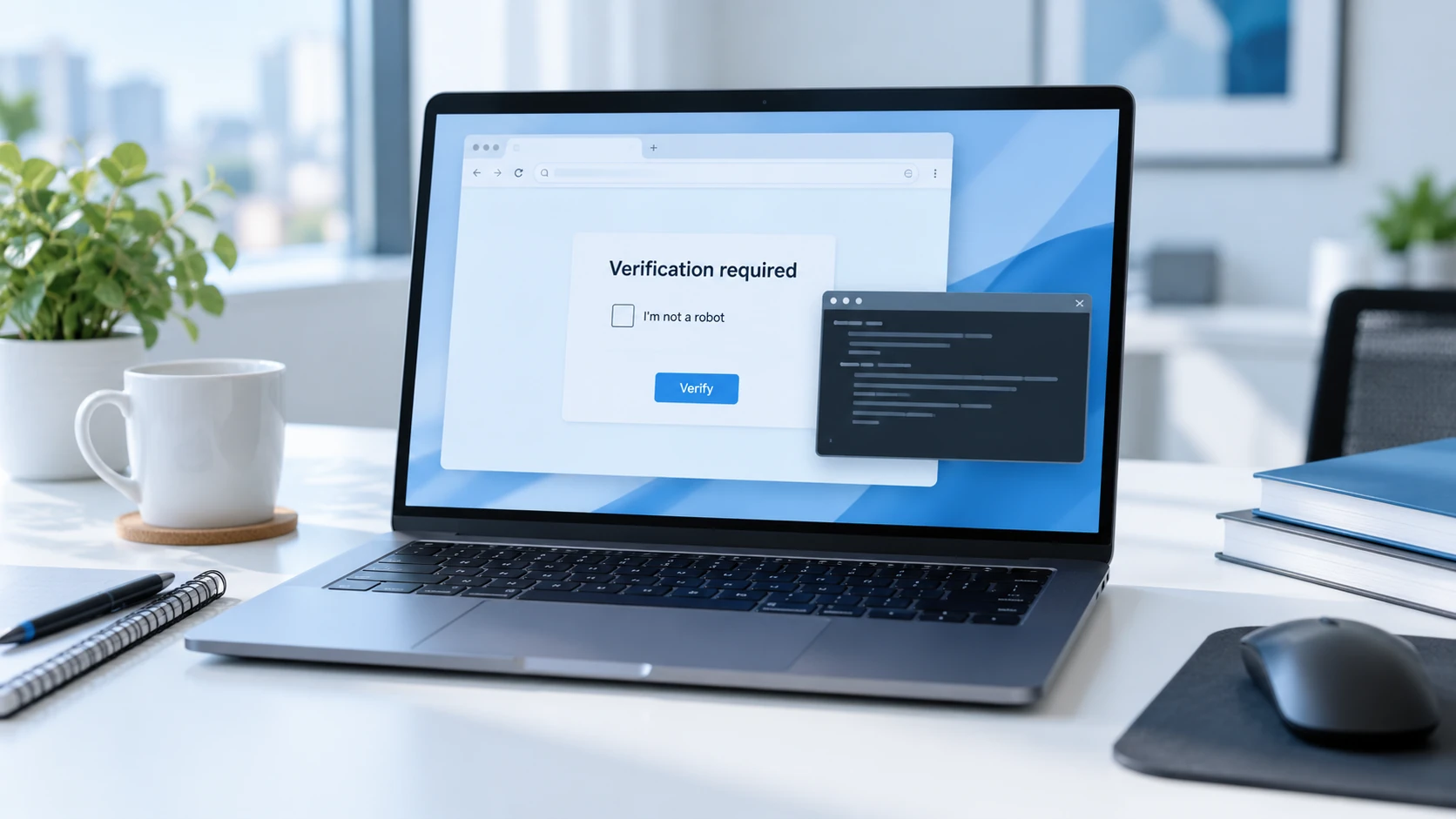
You’ve probably checked a box or selected pictures to prove you’re human. These checks can look different across websites, which makes a convincing fake easy to miss.
A human-verification page that tells you to open a command window, paste something, and run it is an attack. Stop and contact IT. The instructions may say to press the Windows key and R, paste with Ctrl+V, and press Enter.
What a normal human check looks like
A normal check happens in your browser. It might ask you to select pictures, check a box, or wait briefly. Cloudflare’s challenge documentation describes automatic checks and interactions that stay on the web page.
Running a computer command is never part of proving you’re human. Treat any request to open Run, PowerShell, or Terminal for verification as a reason to stop.
Real examples of fake verification screens
These screenshots show actual attack pages documented in Microsoft’s ClickFix research. Both use familiar verification language to lead someone into running a command. Do not follow the steps shown in these attack examples.
A familiar-looking human check
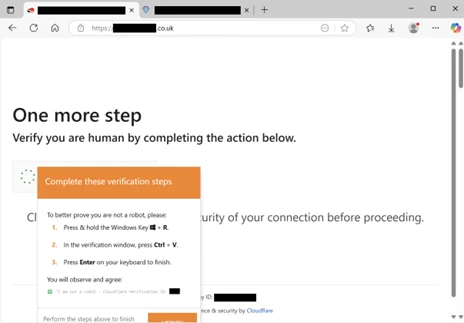
The copied branding can make the page feel routine. The request to open a computer tool and run something is your signal to stop.
A request to prove you’re human by pasting
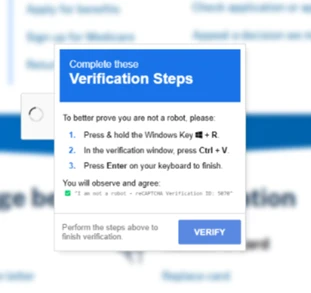
The paste step matters. A button on the fake page can quietly copy a malicious command to your clipboard. Following its next instructions can run that command and install malware.
How people encounter this attack
ClickFix is the name for this trick: a page persuades you to run a harmful command yourself. Fake human verification is one common lure. Other versions claim your browser needs an update or a download needs fixing.
These prompts can arrive through email links, ads, or compromised websites. A familiar website can also be affected. A September 2026 government security alert describes fake CAPTCHA and Cloudflare pages appearing on compromised sites. Windows and Mac users both need to watch for command requests.
What to do at a suspicious prompt
- Stop following the instructions. Leave copied text unused.
- Contact IT using your established support number or portal.
- Tell IT what you were doing and whether you clicked, pasted, pressed Enter, or entered a password.
- Take a screenshot only when you can do so safely without interacting further or exposing private information.
You can report uncertainty, too. A quick description of what happened helps IT decide what to check.
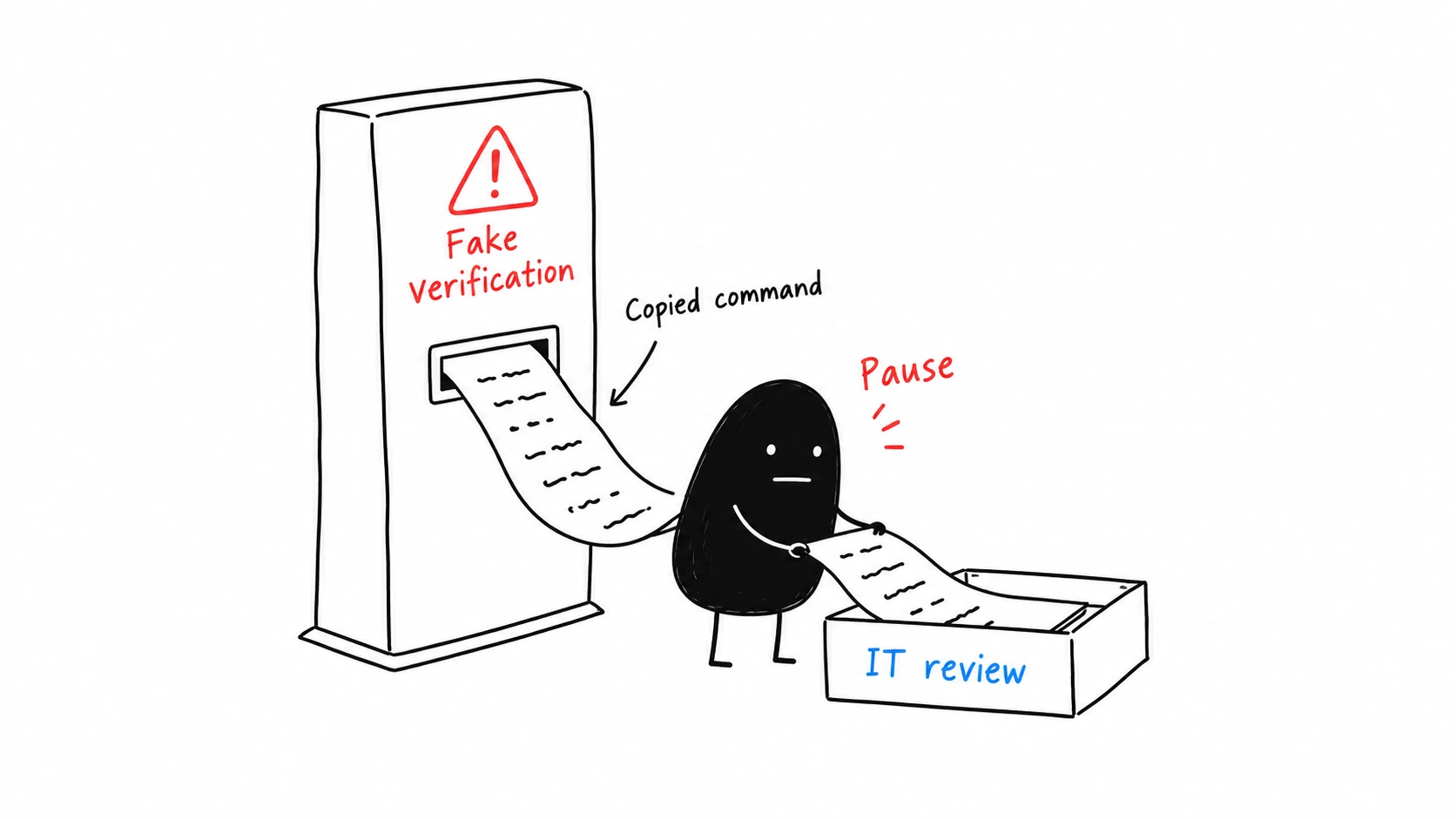
Contact IT immediately after running a suspicious command
A computer can appear normal after a harmful command runs. Use a separate phone or trusted device to get help, and follow your company’s incident procedure.
- Disconnect the affected computer from Wi-Fi and unplug its network cable.
- Leave it powered on after disconnecting unless IT directs otherwise. Avoid restarting it or attempting a cleanup.
- Stop using it for email, banking, or password changes until IT clears it.
These first steps adapt CISA’s malware-containment advice in its ransomware guide. IT should direct recovery and any account-protection steps. Network disconnection helps contain the incident while preserving evidence for investigation.
Gamma Tech helps Naples and Southwest Florida businesses with cybersecurity and managed IT. Existing clients should use their established support route. Businesses needing help can contact Gamma Tech at (239) 330-4939.